
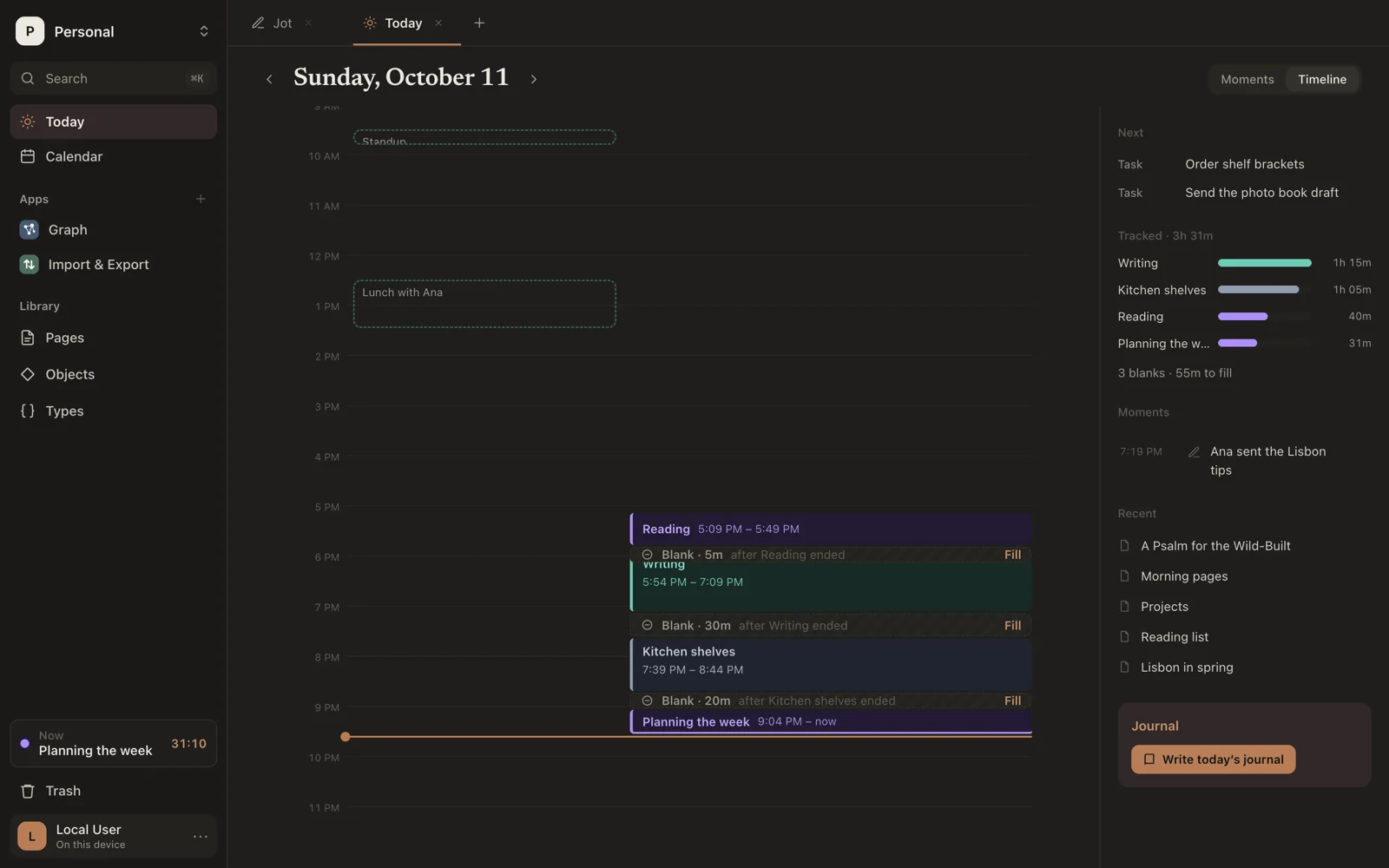
Appearance
Today
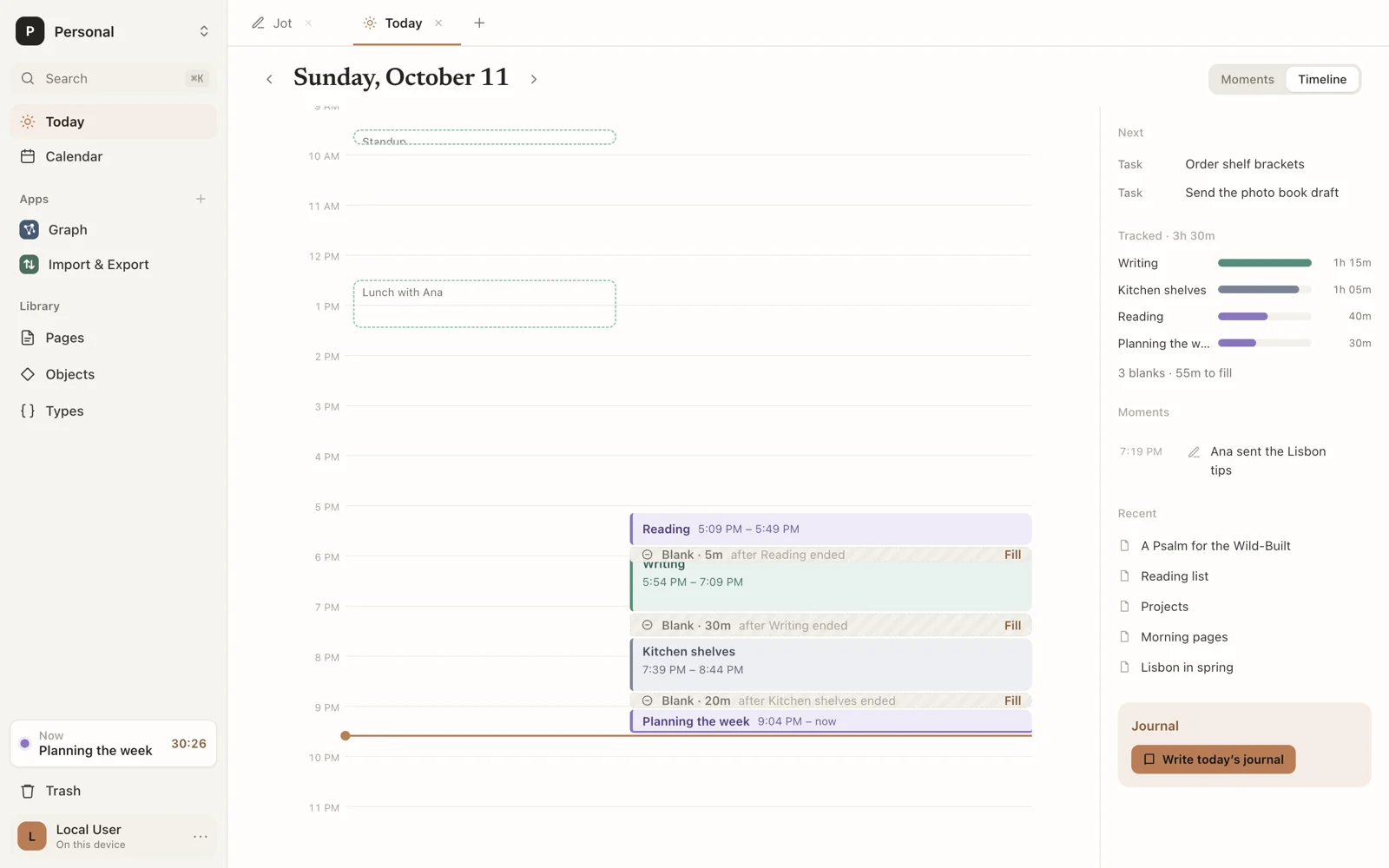
Today, near the top of the sidebar, is your day: what you're doing now, what you've done, and what's next.
The day log
Everything you log goes into the day log:
- Activities: what you did, from when to when.
- Moments: a note at one time.
- Measurements: a number at one time, such as
mood 4.
You log from Today's line, from Jot, with ⌘J anywhere, or from the activity at the foot of the sidebar.
Two ways to see the day
Switch between them at the top.
- Timeline shows the day as a column of hours: your activities as blocks, your calendar's events and tasks beside them, and the blanks in between. Today, it also shows what's running now.
- Moments shows everything logged, in order, as a list.
‹ and › move a day back or forward; Back to today returns. Sorus remembers which style you used last.
Today's line
Type at the top and press ↵. It reads lines like Jot does (see Line syntax), with one difference: on today's timeline, plain text switches to that activity. On other days, or in Moments, plain text is a moment.
Below the line, chips offer your recent activities. Click one to switch to it.
Beside the day
- Next: today's events and tasks that haven't happened yet. On another day, Planned.
- Tracked: how long you spent on each activity, and the day's total.
- On the timeline, how many blanks are left to fill.
- On the timeline, the day's Moments.
- Recent pages you've opened.
- Journal: opens a page for the day, called Journal · Oct 11, 2026, making it the first time.
A week or a month
Choose Week or Month at the top to look back: how long you tracked each day, split by activity; where the time went over the whole of it, with each activity's share; how what you measure went, such as your weight, with a line of its readings; and how many moments you noted. The arrows go back and forward a week or a month at a time. Click a day to open it.
Journal
Each day can have a page of its own. Press ⇧⌘D anywhere in Pages, or choose Today's journal in the palette, to open today's. The days are kept inside a page called Journal.
To start every day the same way, write a page called Journal template. A new day's page begins with what it says, below the day's title.
Finishing tasks
An activity started from a task (with Start now on the calendar) shows a Done chip. Click it to mark the task done.