
Appearance
Objects in a page
A page can hold objects: a person you met, a book, an event. They stay objects, with their own page and fields, wherever they show.
Make an object with >
Type > and start typing a type's name. Choose a type, and Sorus makes a new object of it right there, puts it in the page, and opens its page for you to fill in.
- The new object goes inside the current page in the page list.
- Page is on the list too: it makes a new page inside this one.
- Event and Task go on the calendar: an event at the next half hour, a task due within the week.
>with a space after it is still a quote.
/object types the > for you.
Tag a line with a type
To turn a line you've written into an object, without leaving the page:
- At the end of the line, type
#and the start of a type's name:Dune #bo. - Choose Book.
The line's text becomes a Book called Dune, right where it was. Unlike >, its page doesn't open; you stay where you're writing.
- It works in list items, to-dos and quotes too.
#with a space after it is still a heading.
Embed an existing object
- Type
[[and choose it. See Links. - Or click Insert object in the toolbar and pick from the list.
How objects show in a page
On a line of its own, an object shows as a card: its name, its type, and up to six of its fields. Edit a field right on the card: click to type, tick a box, or pick from a list.
Inside a sentence or a list item, an object is a small chip. Click it to see its fields in a popover, edit them there, or click Open to go to its page.
Make a type from a table
Already wrote a table of books, trips or recipes? Make it a type:
- Put the caret in the table. Make a type appears on its header line.
- Check the type's name. Sorus suggests one from the heading above the table, such as Book under Books.
- Check each column's kind. Sorus guesses from the values: number, date, link, email, yes or no, choice, or text. Change any you like.
- Click Make type.
Sorus makes the type, makes one object per row inside this page (the first column names them), and puts a view of them where the table was.
Views in a page
A saved view can sit in a page, and you work with it right there: edit its cells, add rows, and switch between Table, Gallery, Board, Calendar, and layouts extensions add. Type /view and choose View of objects, or choose View after >.
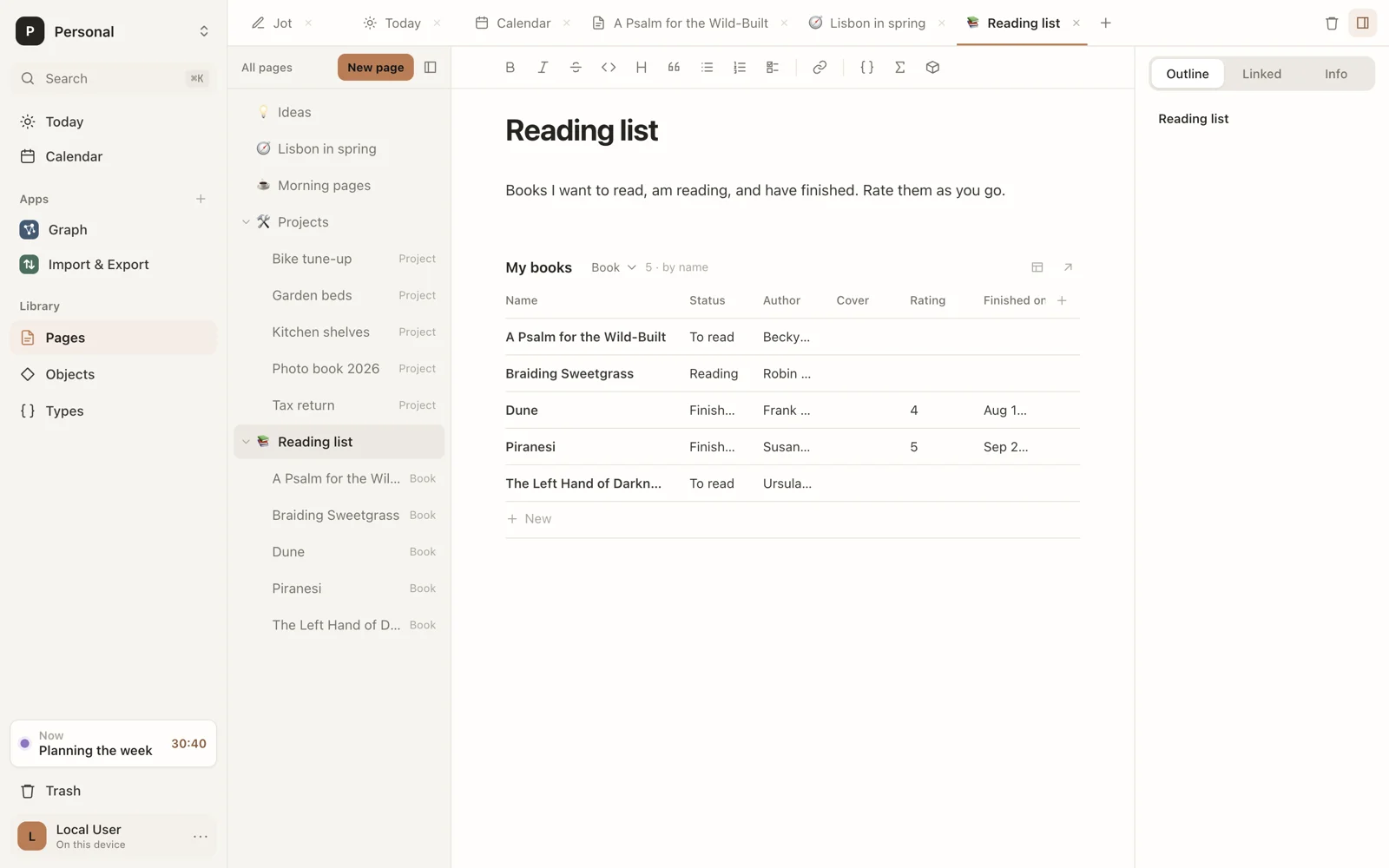
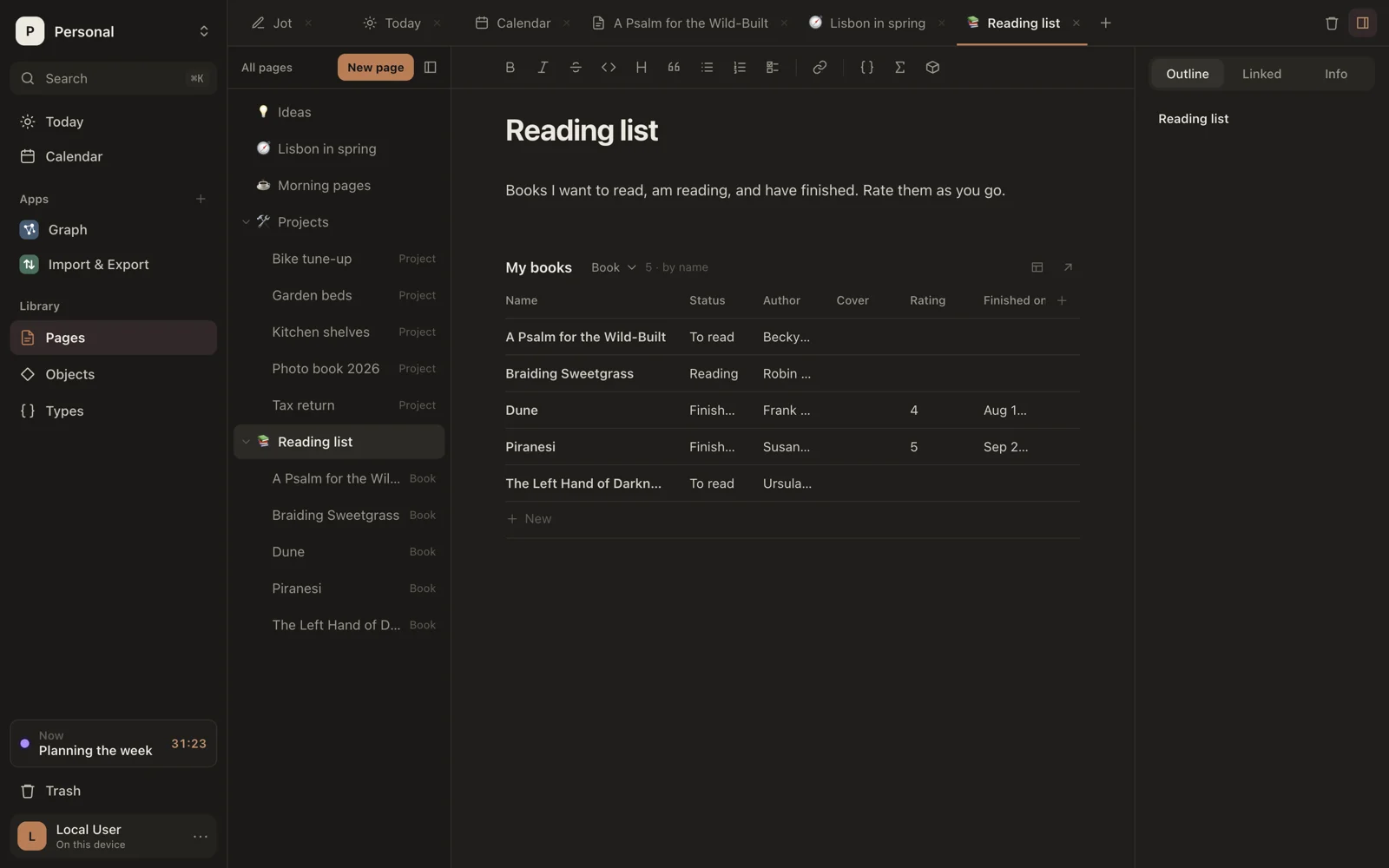
- Click its name to rename it.
- Pick the type it shows, or Every type, or New type… to make one. A view that hasn't been named takes its type's name.
- Its options button has Show as, Filter… and Sort….
- Edit values in its cells, add objects in its New row, and add a field with the + column, as in Objects.
- Open in Objects shows it there, with room for everything. A view in a page shows up to 50 objects.
It's the same saved view Objects lists, so changes in either show in both.
Extension blocks
An extension can draw its own objects in a page. Movies, for example, draws a movie as a card with its poster and how often you've watched it.
- Its blocks are in the
/menu. Choosing one makes a new object and draws it in place. - Any object of that type on its own line is drawn the same way.