
Appearance
Adding extensions
An extension adds to Sorus. One extension can bring any mix of:
- types, with their fields and templates;
- apps, each a place in the sidebar with its own screens;
- views, new ways to show a saved view in Objects, such as a board;
- blocks, which draw its objects inside pages;
- commands for the palette, sometimes with a shortcut;
- jobs that run in the background, such as syncing from a service.
You install, update and remove an extension as one.
Install one
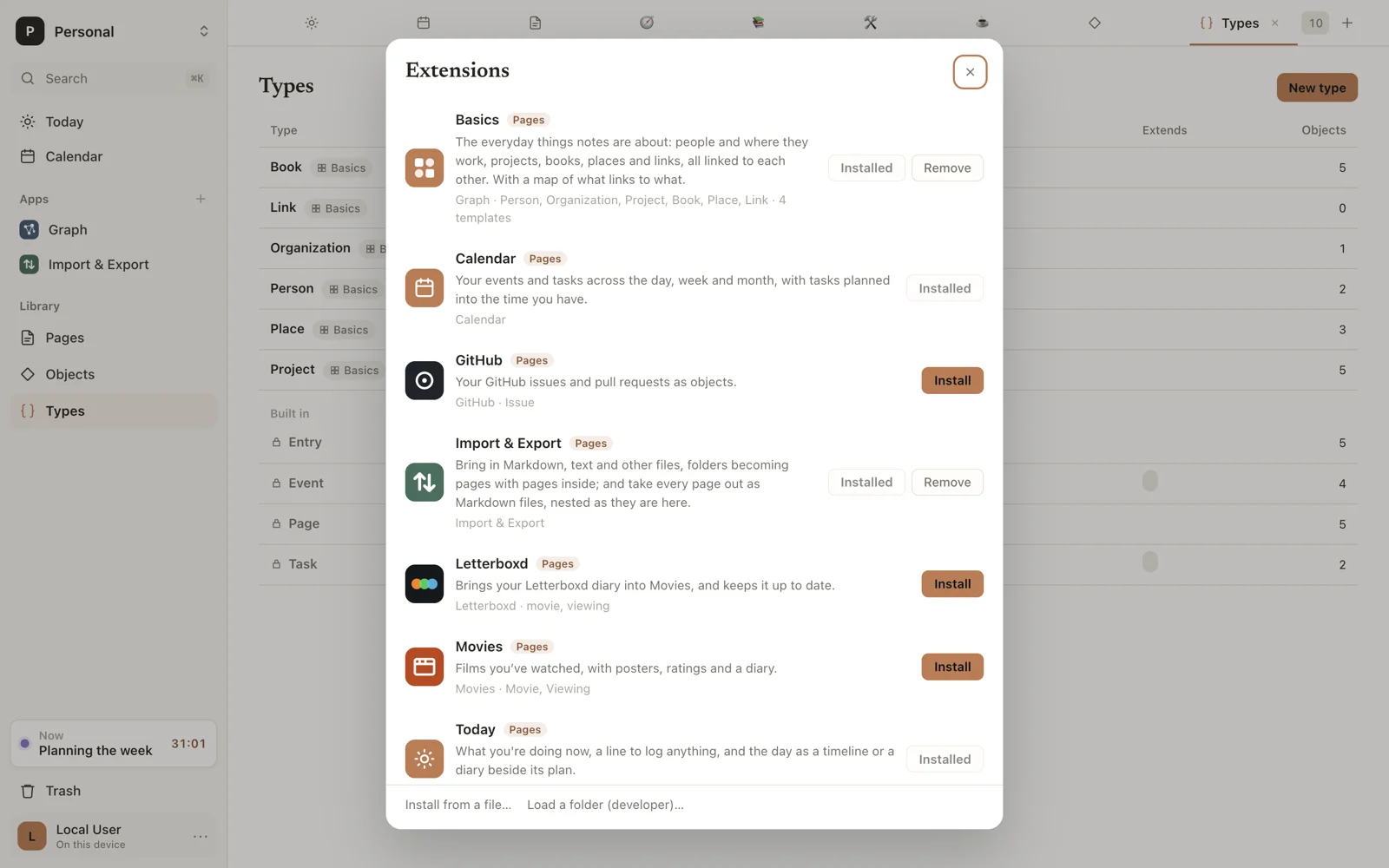
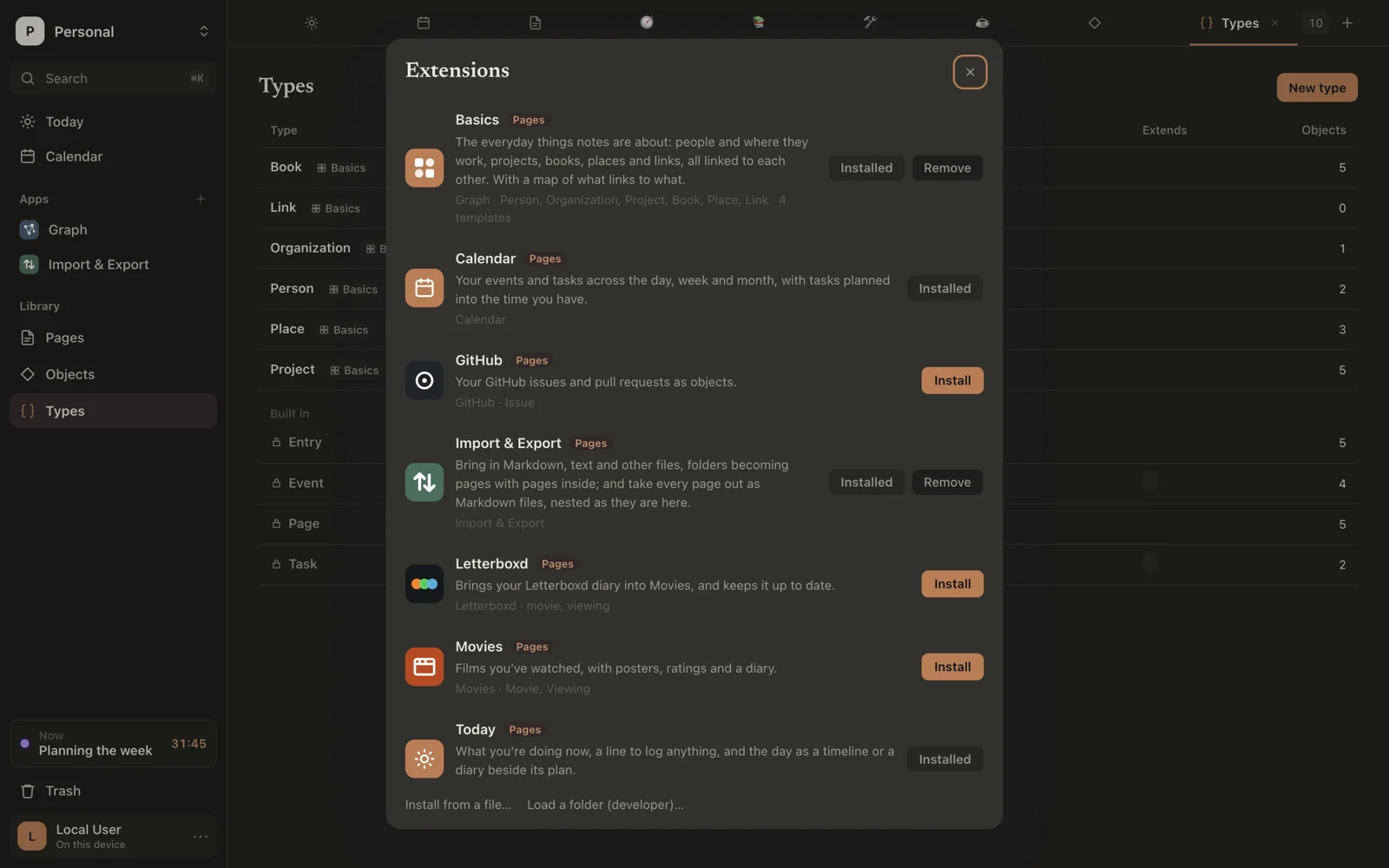
Click + beside Apps in the sidebar. The list shows the extensions that come with Sorus and what each brings. Click Install.
Before anything is installed, Sorus shows what the extension:
- brings into the workspace: its types and their fields;
- builds on: what else of yours it can read or change, such as your pages, the calendar or the day log, each marked read or read and write;
- reaches: websites, accounts and background jobs, if any.
Click Install to go ahead.
Use a type you already have
If you already have a type like one the extension brings, Sorus offers to use yours. Under As, choose Your type “…” instead of A new type. Sorus tells you which fields your type will gain. Your objects stay as they are, and the extension works with them.
From a file
At the bottom of the list, Install from a file… takes an extension file someone gave you. Sorus checks it and shows the same summary first.
Signed by Sorus
Extensions made by Sorus carry its signature and a Pages badge. They can sit among Sorus's own places in the sidebar and draw inside Sorus's window. Every other extension runs walled off, in a frame, and reaches only what you approved.
On another device
Installed extensions are part of the workspace, so they come along when it syncs. On a device that hasn't approved one, its app shows Review… instead of running. Review it and click Allow.
The same happens after an update that asks for more than before; what's new is marked New.
Use one
- Its apps are under Apps in the sidebar. Right-click one and choose Pin to Library to move it to the Library.
- Its commands are in the palette.
- Its views are under Show as in Objects.
- Its blocks are in a page's
/menu.
Manage one
Open one of its apps and click ⋯ beside the title:
- About shows the summary again.
- Connect or Disconnect an account it uses.
- Run one of its jobs now.
- Uninstall.
Or open the list (+ beside Apps), where installed extensions show Update when a newer version comes with Sorus, and Remove.
Removing an extension keeps its types and your objects. Today and Calendar come with Sorus and can't be removed.