
Appearance
Pages
A page is a Markdown document. Pages are listed in the Pages view, where they nest inside each other like folders.
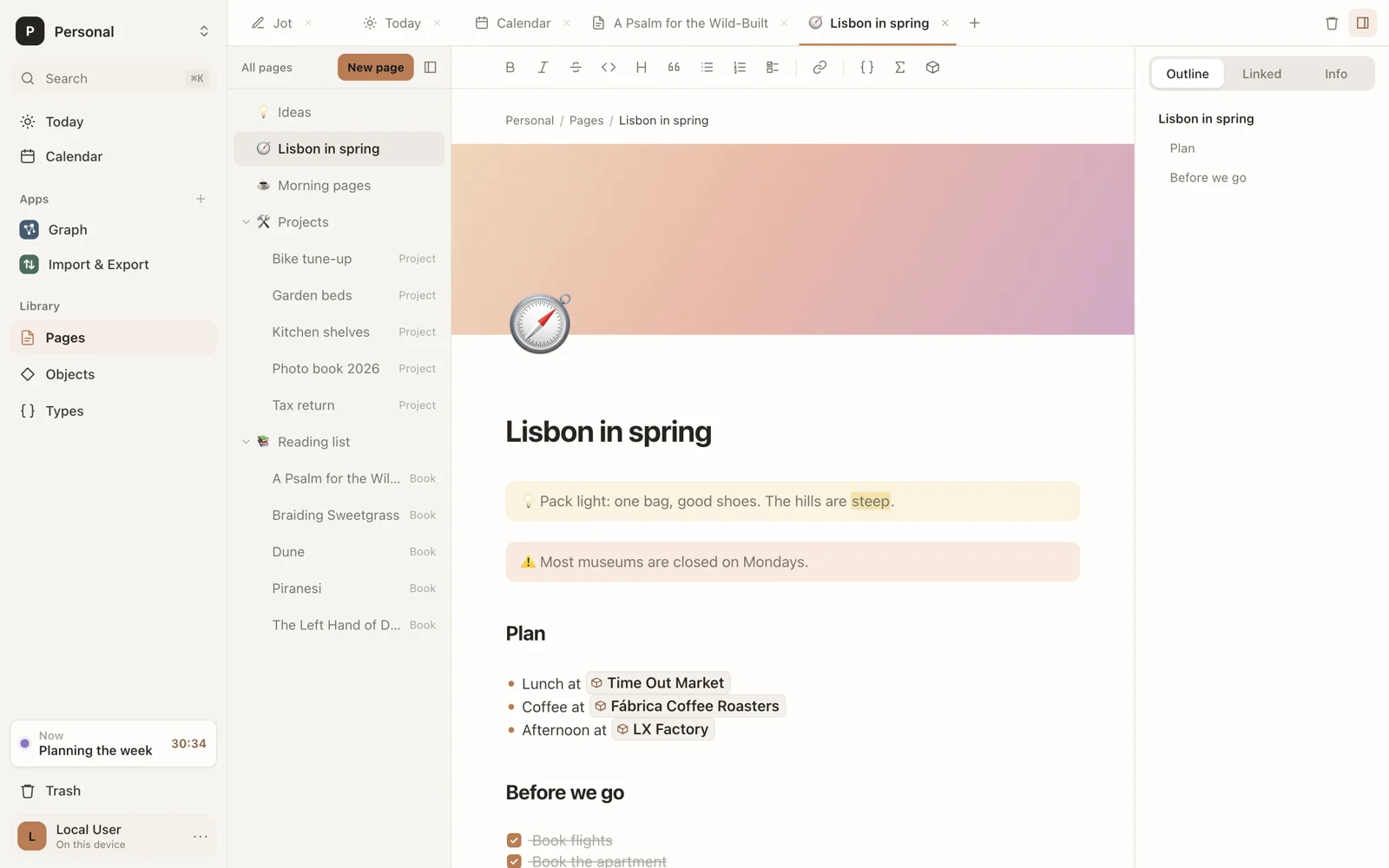
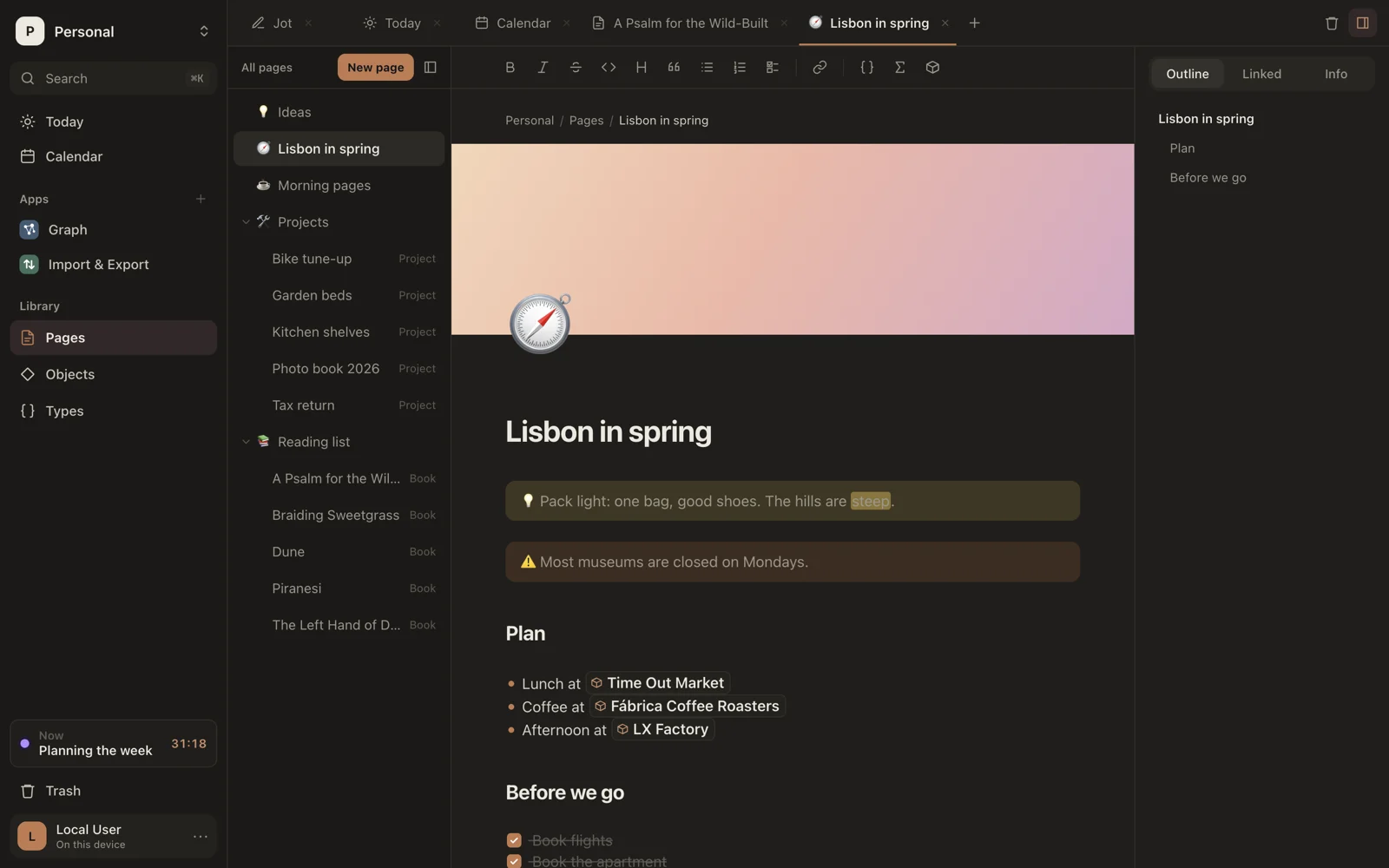
Make a page
- Press ⌘N, or click New page at the top of the page list.
- In Jot, write a few lines and press ⌘↵.
- In any page, type
[[, then a name that doesn't exist yet, and choose New page “…”. See Links.
A new page goes next to the page you have open: inside the same page, or at the top. Under the title, In … shows where it is; click it to put it somewhere else.
While the page is empty, it offers ways to start: a Template, such as Meeting, or a Type, which makes the page an object of that type, such as a Book. Start typing and they go away. See Templates to use, save and change templates.
If you leave a new page without writing anything in it, it isn't kept.
Titles
A page's name is its first line. Type it and the name follows; a page without one is called Untitled. The first line is a top-level heading (# Like this) underneath, but the # stays hidden.
Objects are different: their name is a field at the top of the page. See Objects.
Saving
Sorus saves as you type. The status beside the page's path says Saving… or Saved. ⌘S saves right away.
Earlier versions
Sorus keeps every page's history. Point above the title and choose History to see how the page was: edits made close together are one version. What's changed since is marked, and Restore brings a version back. Restoring is an edit too, so it's in the history, and you can undo it there.
Nest pages
A page can hold other pages.
- Hover a page in the list and click + for a new page inside it, or use New page inside this one from the palette.
- Drag a page onto another to move it inside. Drag it onto the list's heading to move it back to the top.
- Choose Move to… from a page's ⋯ menu (or right-click it, or use Move page to… in the palette) and pick where it goes.
Objects you make from inside a page, with >, go inside that page.
To move part of a page into a page of its own inside it, select it and click Turn into page (the page icon) over the selection, or choose Turn into › Page from a block's handle. A heading takes everything under it, and becomes the new page's title; otherwise the first line does. A link to the new page is left where the text was.
The path at the top of the editor shows where the page sits. Click a part of it to go there.
The page list
⌘\ shows or hides the list. A page's ⋯ menu also has Open in new tab.
Objects of your own types appear in the list too, marked with their type, since every object is a page.
Several pages at once
⇧-click pages in the list to select them; the open page joins the first one you pick. A bar at the foot of the list moves them under another page, opens each in a tab, or moves them to the trash. Drag any of them onto a page to move them all there. Esc clears the selection.
Icons, covers and style
Give a page an emoji icon, a cover, and its own font and width. See Make a page your own.
Delete a page
Click the trash button above the page to move it to the Trash. You have 30 days to restore it.