
Appearance
Writing and formatting
Pages are Markdown. You type the marks; Sorus shows the result and hides the marks once the caret moves away. Put the caret back on a line and its marks come back to edit.
Text
| Style | Type | Shortcut |
|---|---|---|
| Bold | **bold** | ⌘B |
| Italic | _italic_ | ⌘I |
~~struck~~ | ⇧⌘X | |
Inline code | `code` | ⌘E |
| ==Highlight== | ==highlight== | ⇧⌘H |
| Link | [label](https://…) | toolbar |
With text selected, the shortcut wraps it; press it again to unwrap.
The highlighter in the toolbar picks a colour: yellow, green, blue, pink or purple, or None. Yellow is ==text==; another colour is named first, as in =={green}text==.
Blocks
| Block | Type at the start of a line | Shortcut |
|---|---|---|
| Text | ⌥⌘0 | |
| Heading 1, 2, 3 | # , ## , ### | ⌥⌘1, ⌥⌘2, ⌥⌘3 |
| Quote | > | ⇧⌘. |
| Bulleted list | - | ⇧⌘8 |
| Numbered list | 1. | ⇧⌘7 |
| To-do list | - [ ] | ⇧⌘9 |
| Divider | --- |
Block shortcuts work on every selected line. Using one on lines that are already that kind turns them back into text.
In a list, Tab nests an item under the one above, and ⇧Tab brings it back out.
Click a to-do's box to tick it. A done item is struck through.
Images and files
Paste an image, or drag files in from Finder, and each is kept with the workspace and put on a line of its own where you dropped it. Drag the handle on an image's right edge to make it smaller or bigger.
A PDF shows its pages, ready to read; a video or a sound plays where it is. Any other file shows as a card. Open opens a file in the app your computer opens its kind with. Search finds a PDF by the words in it, too.
Voice notes
Type / and choose Voice note to record one where the caret is. A bar shows how long it's been; click Stop to keep it, or × (or Esc) to throw it away. The first time, your Mac asks whether Sorus may use the microphone.
The recording is kept like any other file and plays in the page. Click Transcribe under it to have it written out: the recording goes to the AI assistant's provider to do it, only when you ask. The words show under Transcript, and search finds the recording by them.
Callouts
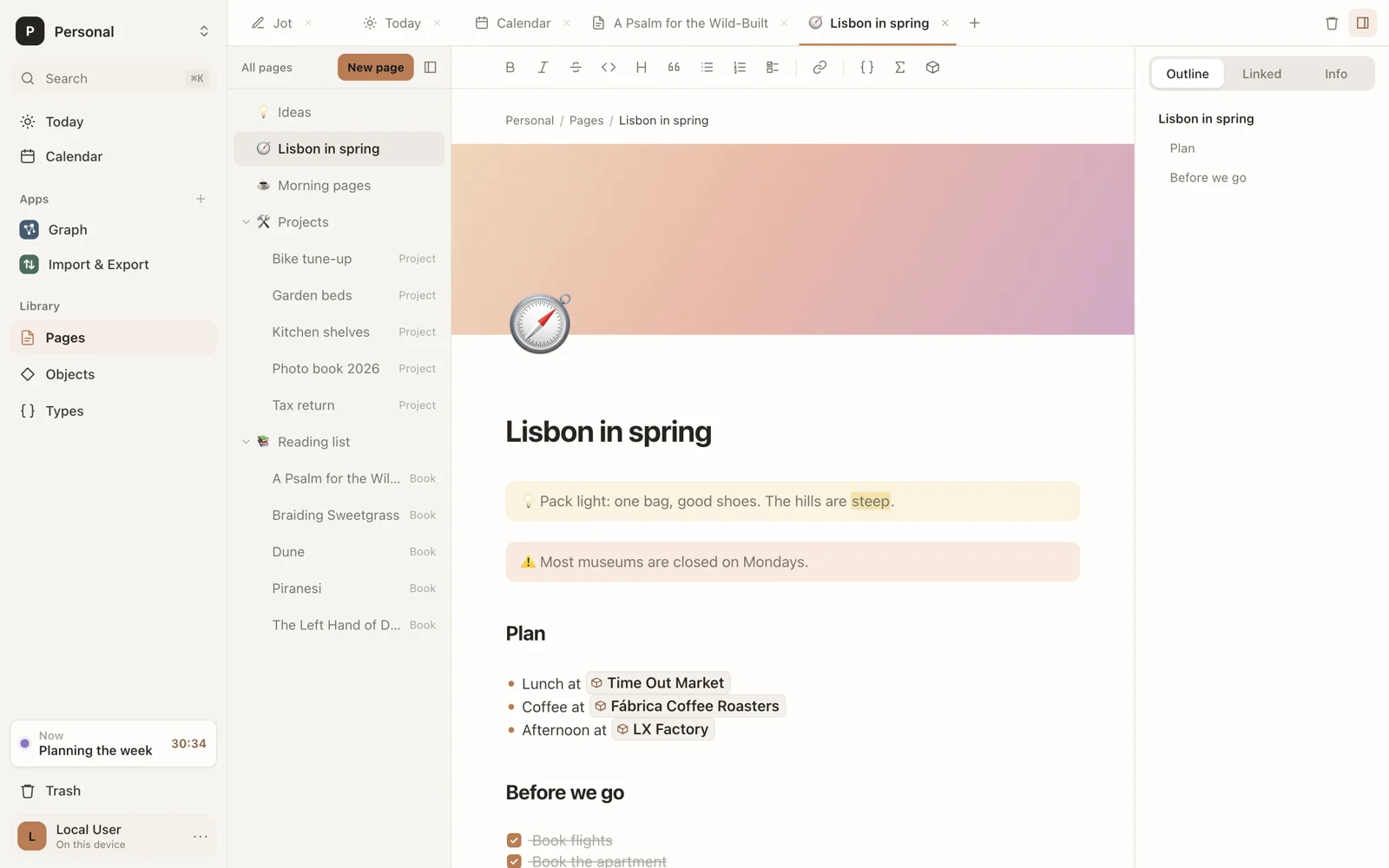
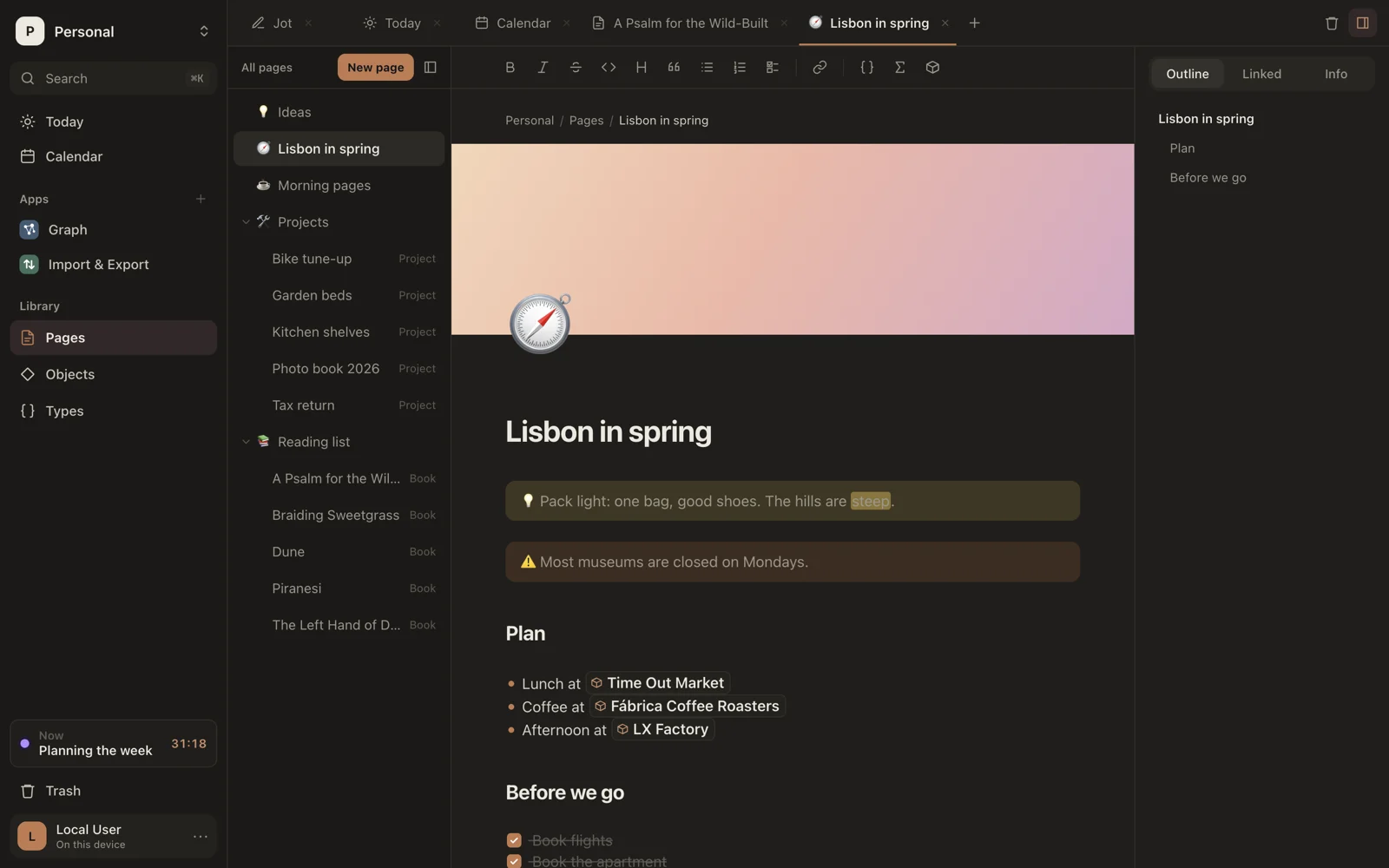
A quote that starts with an emoji becomes a callout: a tinted box that stands out from the text.
md
> 💡 Book the train before Friday.The emoji sets the color:
| Emoji | Tint |
|---|---|
| 💡 ⭐ ✨ 🔥 | Warm |
| ⚠️ ❗ | Orange |
| ✅ 🌿 | Green |
| ❌ 🚫 | Red |
| ℹ️ 💬 📌 | Blue |
| Any other | Neutral |
Callout in the / menu starts one.
Columns
Choose Columns in the / menu to put blocks side by side. Each column is written in like the rest of the page. Point at the columns for Add column, or Remove columns to turn them back into blocks one after another.
In the page's Markdown, columns sit between comments, which other Markdown apps hide:
md
<!-- columns -->
The first column

<!-- column -->
The second

<!-- /columns -->
Move and change blocks
Hover a block (a paragraph, heading, list item, quote, and so on) and a grip appears at its left.
- Click the grip for:
- Turn into: Text, Heading 1, 2 or 3, Bulleted list, Numbered list, To-do list, or Quote;
- Move up and Move down;
- Duplicate;
- Delete.
- Drag the grip to move the block. A line shows where it will land.
A list item moves with everything nested under it.
You can also move the current line with ⌥↑ and ⌥↓.
The toolbar
The toolbar above the page has bold, italic, strikethrough, inline code, heading, quote, the three lists, link, a code block, display math, and Insert object, which picks an existing object to embed.
Select text and a smaller bar appears over it: bold, italic, strikethrough, code, link, a highlight colour, and Ask AI.
More
- Type
/for everything you can insert: The / menu. - Type
[[to link to a page or object: Links. - End a line with
#and a type to turn it into an object: Tag a line. - Type
>to make an object right here: Objects in a page.