
Appearance
Saved views
Objects, in the sidebar, lists your objects. It shows one view at a time, picked from the menu beside its title.
- All objects lists everything, as a table.
- A saved view lists objects of one type, with its own filters, sort, and way of showing them.
Edit in place
In a table, click a cell to change it:
- Type into text, numbers, dates, links and emails.
- Tick a yes/no box.
- Pick a choice's option, or the object a reference points to.
- Click a name to rename the object.
Cells that can't be edited there, such as files or worked-out fields, open the object instead. To open an object, click the arrow beside its name, or press ↵ on its row. Sorus's own kinds of object, such as files, formulas and code blocks, open in a panel on the right.
In a saved view of one type, the last row, New, adds an object: type its name and press ↵.
Column menus
Click a field's column header for:
- Sort ascending and Sort descending;
- for your own types, Move left and Move right, Edit field… and Remove field. Removing a field asks first, and clears it on every object of the type.
Change what a field holds
In Edit field…, choose another kind under Holds. Values that read as the new kind become it:
"4"becomes the number 4, and a number becomes its text;- text becomes the choice of the same name, and a field becoming a choice gains an option for each value it holds;
- a name becomes a link to the object called that, and a link becomes its object's name;
2026-10-11becomes that date;yes,no,trueand1become yes or no.
If some values don't read as the new kind, Sorus says how many and asks before clearing them.
Add a field
Click + at the end of the table's header to add a field to the view's type. Name it and choose what it holds: text, number, date, date and time, yes or no, choice (type the options separated by commas), link, email, or an object (of any type, or one you pick). Every object of the type gets the new field.
Make a saved view
- Open the view menu beside the title and choose New view….
- Name it, pick a type, and click Create.
A view of a type includes objects of the types that extend it.
Filter and sort
Open the ⋯ view options:
- Filter… picks a field, how to compare (is, contains, is before, is at least, is empty, and so on, depending on the field's kind) and a value. Filters show as chips above the table.
- Sort… picks a field and a direction.
Search
Type in Search at the top of Objects to keep to what has those words, in its name or in a text, link, email, number or date field. It works on whichever view is showing, with its filters, and isn't saved with the view. Esc clears it.
Show as
In the same menu, Show as chooses how the view draws its objects:
- Table: a row for each object, a column for each field.
- Gallery: a card for each object, with its picture if it has a file field.
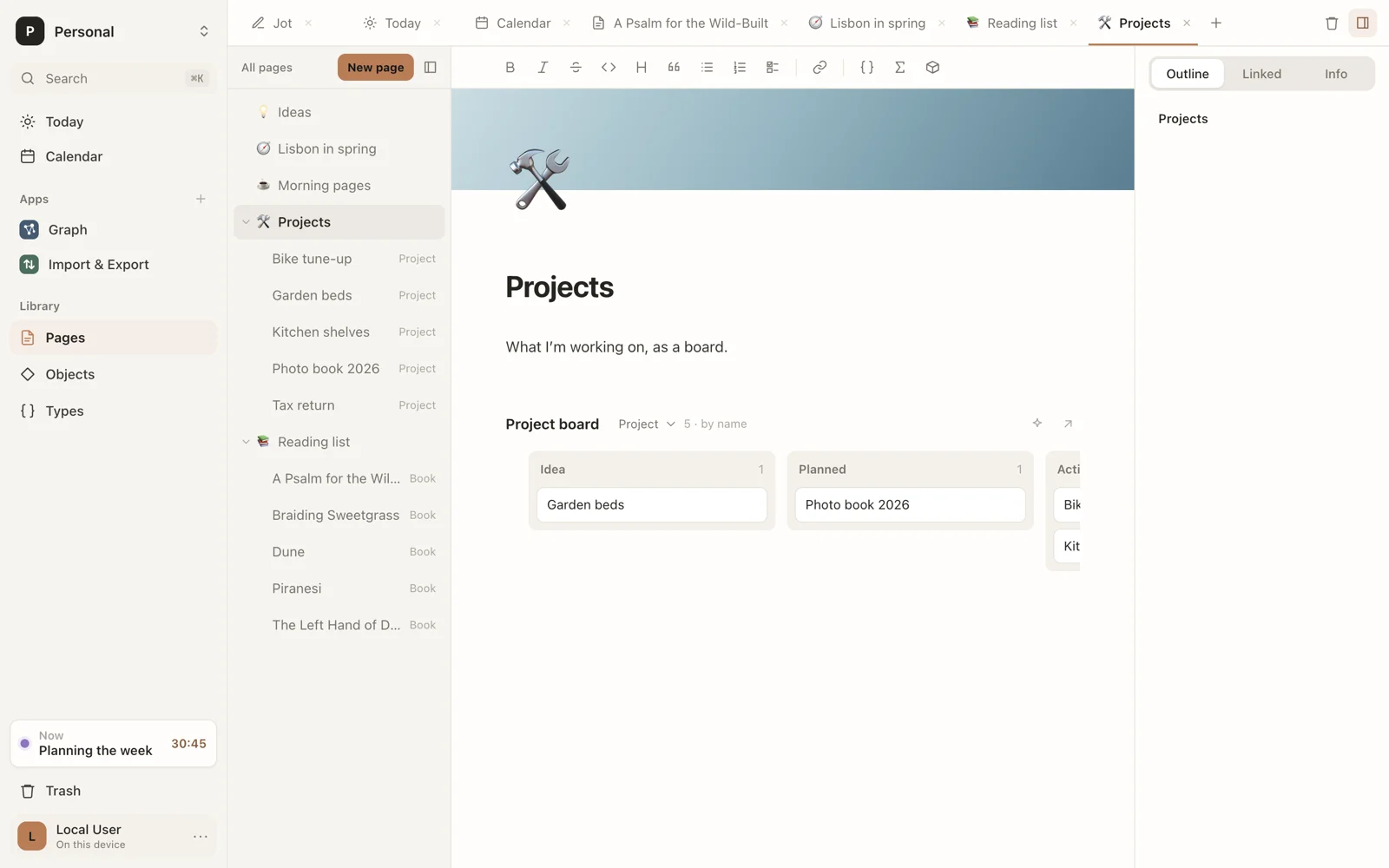
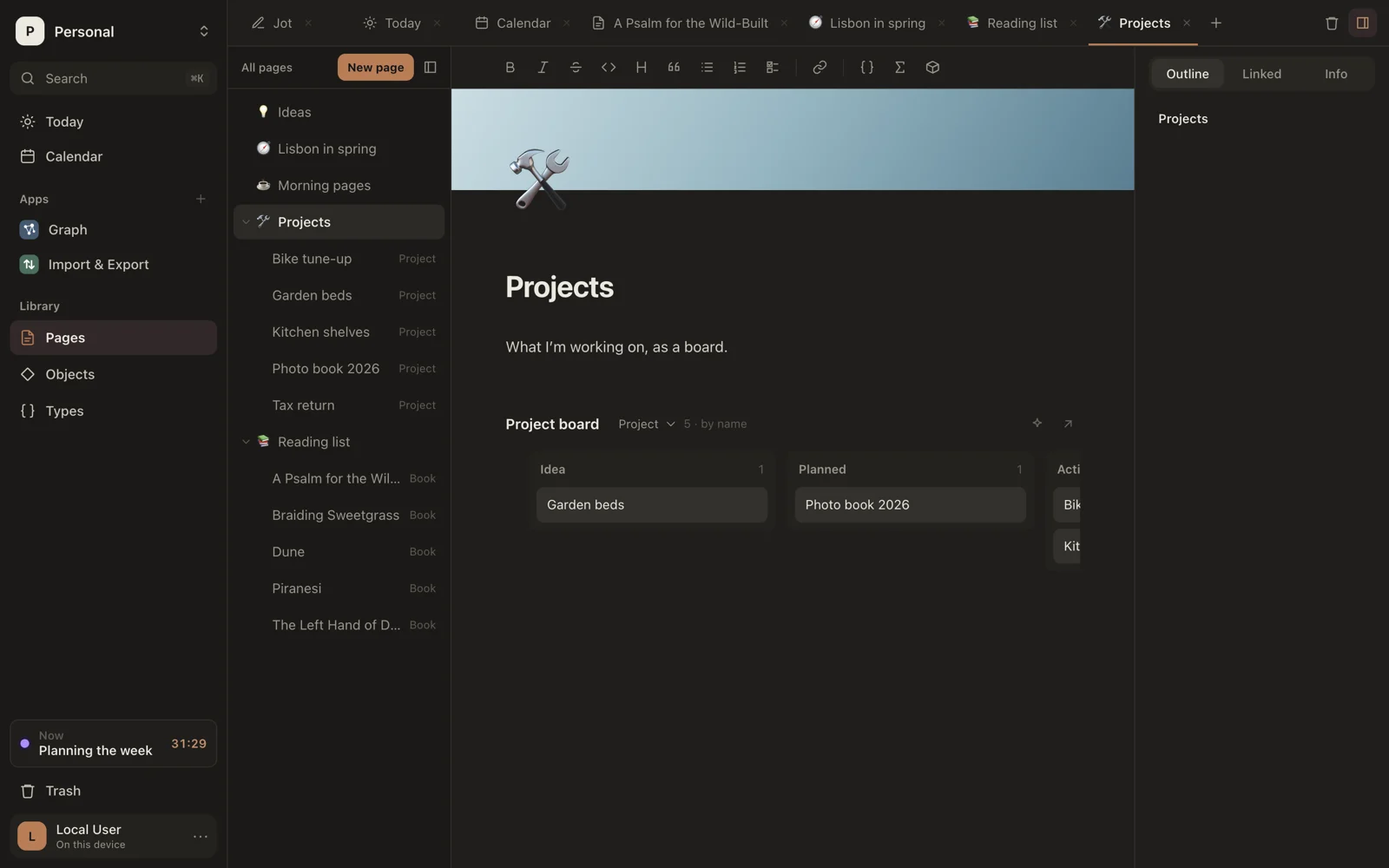
- Board, for types with a choice field, such as a project's Status or a book's: a column for each option, with each object in its own. Drag a card to another column to change it, or click + in a column to add one there.
- Calendar, for types with a date or date-and-time field: a month, with each object on the day of the type's first date field. Move between months with the arrows, or go back with Today. Click + on a day to add an object on that day.
- Timeline, for types with a date: each object along time, as a bar from its type's first date to its second, such as a trip's Start and End, or a dot on its day when there's one date. Months run across the top and a line marks today. Click one to open it.
- Chart, for types with a choice or a date: a bar for each option, or for each month of a date, showing how many objects there are, or the total of a number field, such as a project's Budget. Choose which at the top of the chart.
- Views from extensions, for the types they know.
All objects is always a table.
Rename, duplicate, delete
The view options also have Rename view…, Duplicate view and Delete view. Deleting a view leaves its objects alone.
In a page
A saved view can also live in a page, and works the same way there. It's the same view: changes in one show in the other.